Listening to Radio 5 from Pencoed Rugby Club
Feb 3, 2011 - 0:55

Radio and PodcastLive Radio & Podcasts
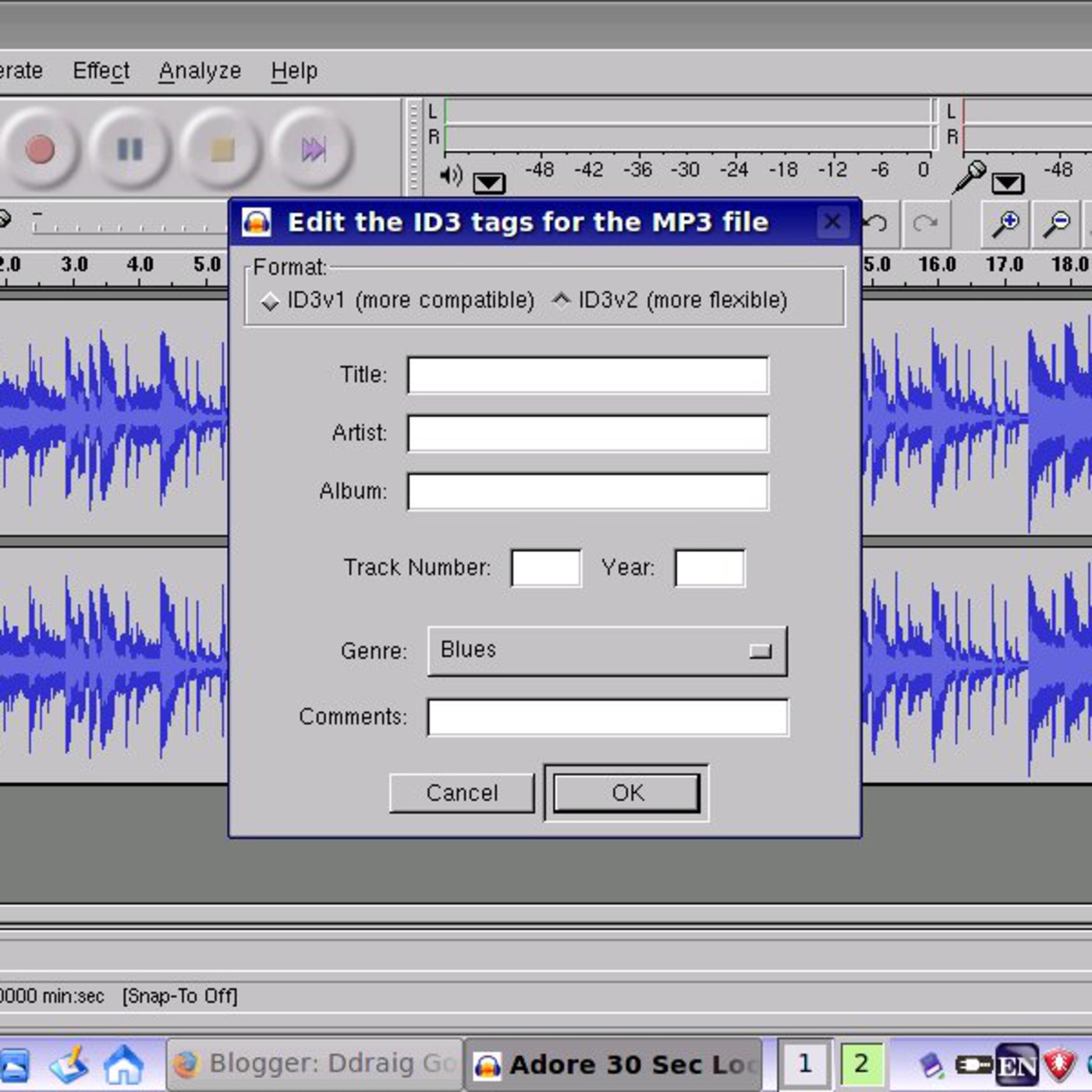
This test podcast was recorded using a Medusa Speed Link USB headset and mic together with Audacity on the Asus Eeepc900. Running Audacity on the little Asus is not difficult and only requires a minimal level of Linux pr...
Podfather Audacity on Eeepc900 is an episode from Podfather's podcast. This test podcast was recorded using a Medusa Speed Link USB headset and mic together with Audacity on the Asus Eeepc900. Running Audacity on the little Asus is not dif...
This episode belongs to Podfather's podcast.
Use the player on this page to stream the episode online.
Published Jul 24, 2008, 4:41 long, audio available.
This test podcast was recorded using a Medusa Speed Link USB headset and mic together with Audacity on the Asus Eeepc900. Running Audacity on the little Asus is not difficult and only requires a minimal level of Linux programming (blog post So I fired up the console and typed "apt-get install audacity." Nothing happened. Actually I got some error message or other. I forget what it was. I wasn't surprised. I figured I'd have to add some repositories. To make a long story short, here is how to install Audacity, and presumably a bunch of other programs on an Eee PC: 1. Open that console window by going to File Manager and clicking Tools/Open Console Window 2. Navigate to //etc/apt 1. You do this by first typing "cd //" 2. Then type "cd etc" 3. And finally "cd apt" 3. Now it's time to edit your source list using the vi text editor 1. Type "sudo vi sources.list" 2. User the arrow keys to put your cursor just below "deb p701 main 3. Hit the "i" key to enter insert mode 4. Type "deb stable main" 5. Hit the "esc" key to exit insert mode 6. Press "ZZ" in order to exit and save 4. Now you should be back at the console 5. Type "sudo apt-get update" to get an updated list of available packages 6. Type "sudo apt-get install audacity" to install audacity. 7. Select yes when it asks if you want to continue 8. When Audacity is done installing, type "audacity" to launch the program. Also the lame encoder will work on the little E with this coding, To compile put the lame file you downloaded in your user folder Right click it and select extract all followed by ok Go into the lame folder you just made Click tools then open console window Type sudo apt-get install build-essential then type su after you enter your password type ./configure then type make then type make install That should be it Audacity should find the file automatically. So simple but it works. Go ahead and get working on your Asus mini notebook.
You can listen to Podfather Audacity on Eeepc900 online on Radio and Podcast. Open the player on this page to stream the available audio.
Podfather Audacity on Eeepc900 is an episode from Podfather's podcast.
This episode is 4:41 long.
This episode was published on Jul 24, 2008.
Yes. Use the heart button on the episode page to add it to your favorite episodes list.
Yes. This page shows related episodes from Podfather's podcast when more episodes are available from the podcast feed.
You can listen to Podfather Audacity on Eeepc900 on this page when the episode audio is available from the podcast feed.
Podfather Audacity on Eeepc900 is from Podfather's podcast.
Published Jul 24, 2008 and 4:41 long